How do I select trends for my Trendradar?
Trend selection is the heart of your analysis. For your radar to carry clear meaning, structured preparation is crucial. You have two ways to bring trends into a radar panel:
1. The efficient method: Preparation via Workspace (Recommended)
We recommend creating one or more Workspaces before creating the Trendradar. This serves as a „shortlist“ of your research.
- Option A – Everything in one Workspace: Collect all potentially relevant trends in one central Workspace and simply select it when creating the Trendradar. Our recommendation: for a meaningful evaluation, select a maximum of 20–30 Macro Trends.
- Option B – Structure by Panels: If your Trendradar should have different segments (panels) – for example „Energy“ or „Mobility“ – create a separate Workspace for each panel. This way you cleanly separate the trends from one another in advance.
- Direct start: You can create a Trendradar directly from within a Workspace. In the Workspace, click the „+“ symbol in the top right and select „Create Trendradar“. The Macro Trends from this Workspace are automatically assigned to the first evaluation panel.
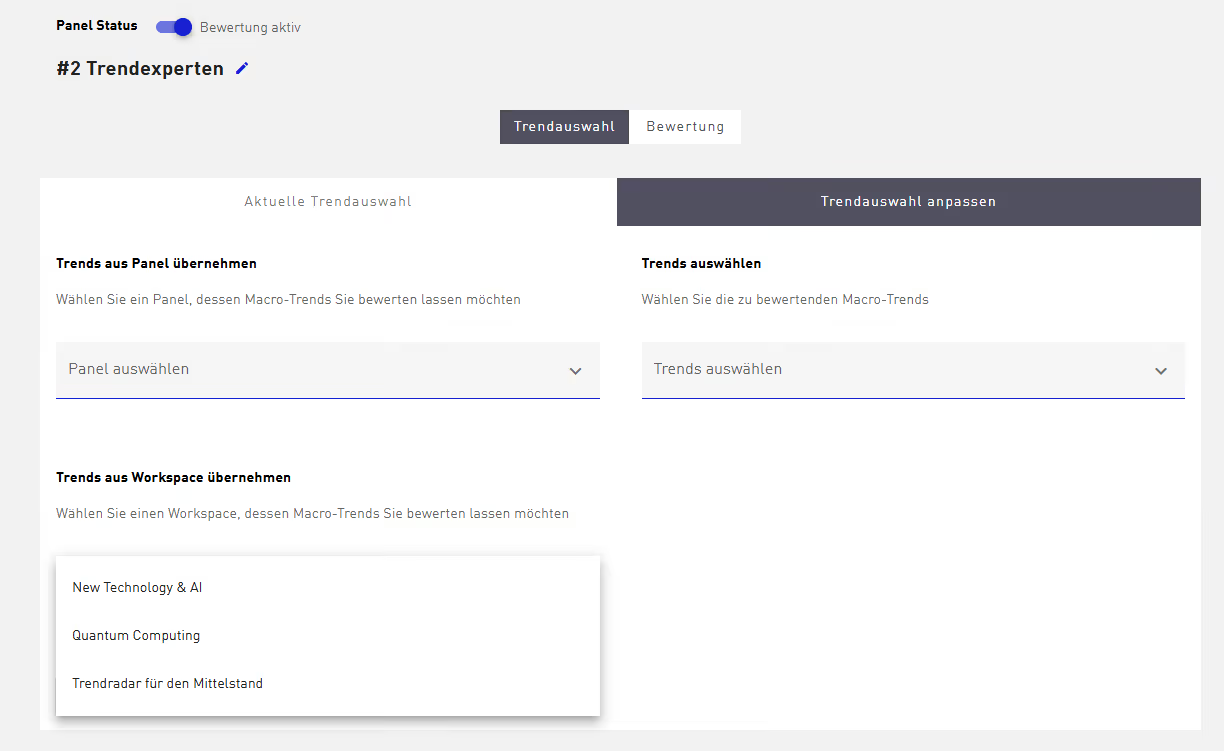
2. Adding or adjusting trends in the radar editor
In the editing view of your Trendradar, the pencil icon of the respective panel takes you into the „Trend selection“ area.
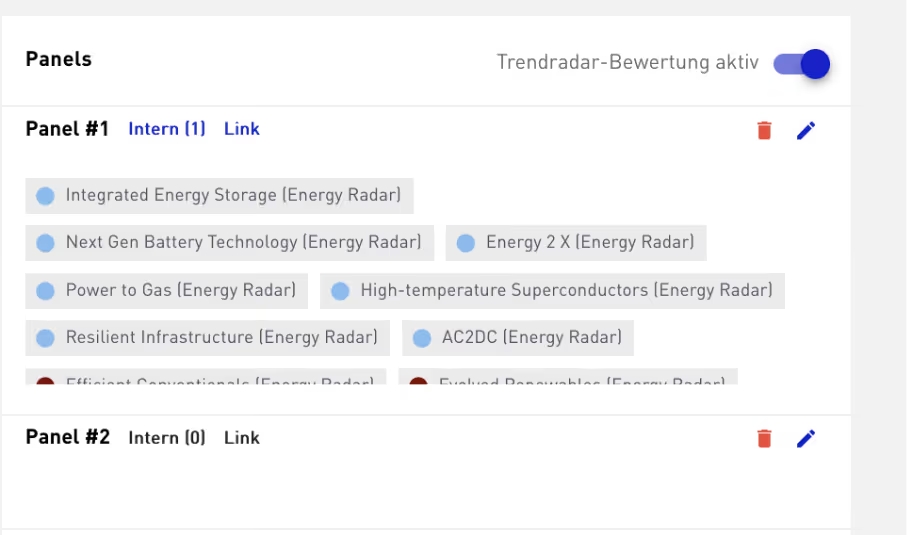
The following options are available here:
- Adopt trends from Workspace: Select an existing Workspace from the dropdown menu. All Macro Trends it contains are loaded for this panel immediately.
- Select trends (dropdown): Search specifically for Macro Trends from our database, or select trends you have created yourself in the system.
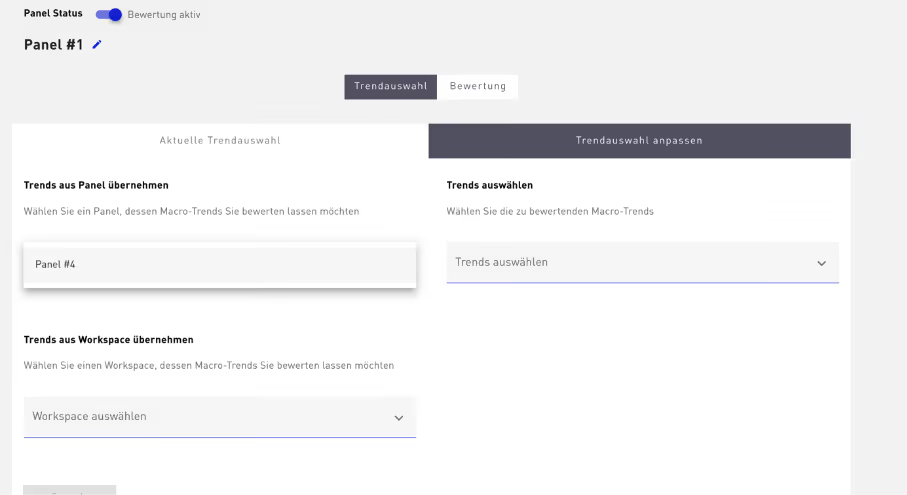
- Adopt from panel: If you use more than one panel, from the second panel onward you can simply copy the trend selection of an already populated panel.
Expert tip: A meaningful Trendradar thrives on relevance, not volume. Use the Workspace view to discuss trends with your team in advance and only bring the trends into the Trendradar that should genuinely be evaluated.